Getting Started
Navigation
The picoTracker user interface is made up of a series of screens, which are layed out in a "map" which is represented at the bottom right of each screen with a single letter representing each screen, along with highlighting with a different color which screen is currently being displayed on screen. For example below you can see the screen map with the Song screen (S) shown as being currently displayed.
Screen Map
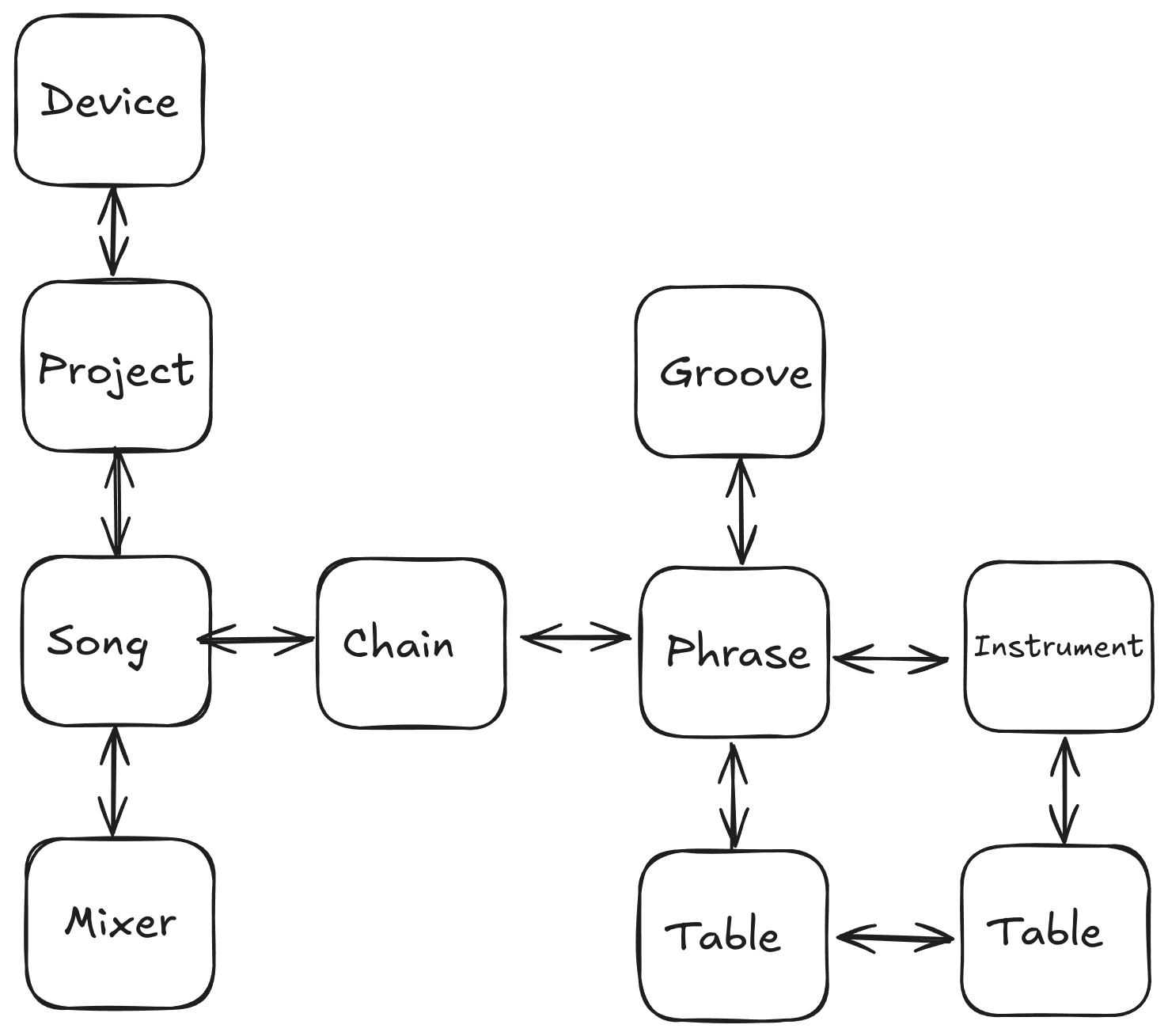
The picoTracker boots into the Song screen of your most recently opened project. Press and hold EDIT while restarting to instead launch a new, untitled project instead.
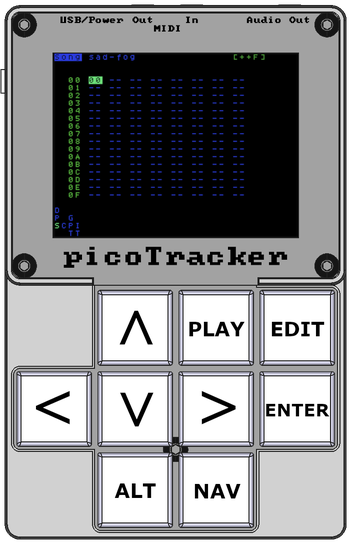
The picoTrackers keypad layout resembles a typical old console game controller.
You can navigate (aka move) between screens using NAV+DOWN/UP/LEFT/RIGHT  .
.
To get to the chain screen, you need to have your cursor on a chain in the song. To get to the phrase screen, you need to have your cursor on a pattern in the chain screen.
The names of the keys are shown below.
Playback Modes and Controls
When you are on the Song screen, there are two modes for playback, Song Mode and Live Mode. The controls in each mode differ slightly.
You can switch between the modes by hitting EDIT+LEFT/RIGHT in the Song screen.
For a list of all the controls, see the Controls & Moves reference.
File Browser
When selecting a sample wav file or project file you enter the file browser view.
When in the Project File Browser view, use the arrow keys UP/Down  to navigate through the list of project available and press ENTER
  to open the currently selected (highlighted) a project.
When in the wave sample File Browser, use the arrow keys UP/DOWN to navigate through the list of available sample files and subdirectories, subdirectories are indciated with a / prefix. Press ENTER to enter a subdirectory, you can go back to the parent directory by navigating to the /.. entry and pressing ENTER or by pressing EDIT+LEFT. Press PLAY  to audition the currently selected sample wave file. To import the currently selected wave file press ALT+PLAY
  . At any time, you can return to the instrument screen from the sample file browser by pressing NAV+LEFT
  .
.
Shutdown
You can just turn off the picoTraceker at any time you want other than when saving a project (which is an extremely brief moment). Save your work first if you care about it.