Controls & Moves
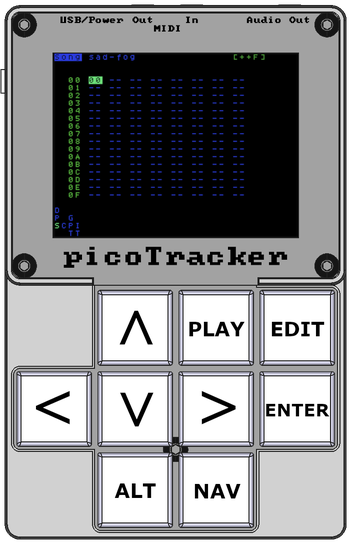
The keyboard layout resembles a typical old console game controller (controller button names in brackets):
ARROW keys |
NAV (RT) |
ALT (LT) |
ENTER (A) |
EDIT (B) |
PLAY (Start) |
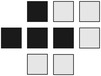 |
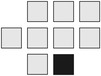 |
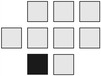 |
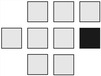 |
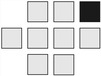 |
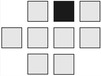 |
The NAV ([]) and ALT keys are modifier keys for the ENTER, EDIT and ARROW keys. They are designed to modify
the opposite keys to their location, so ALT will modify the ARROW keys and NAV will modify ENTER and EDIT (
though there are exceptions).
Screens are getting more detailed from left to right.
Navigating to the next right screen ins only possible if the current cursor position is at field with a filled value.
For example, in the song mode, to switch to the chain view, you need to have a filled value for a chain at the cursor
position.
Song View
No Modifier
| Function |
Key Combination |
Image |
| Move cursor on screen |
ARROW keys |
|
| Start/stop playback |
PLAY |
|
| enter last used value or start with 0 |
ENTER |
|
NAV Modifier
| Function |
Key Combination |
Image |
| Switch to Project view |
NAV + UP |
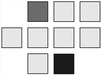 |
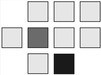
| Switch to Mixer view |
NAV + DOWN |
 |
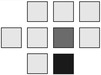
| Switch to Chain view (if current position has a chain) |
NAV + RIGHT |
 |
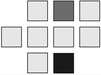
| Stop playback of selected chain, once it finished |
NAV + PLAY |
 |
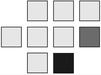
| solo selected track |
NAV + ENTER |
 |
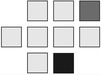
| mute selected track |
NAV + EDIT |
 |
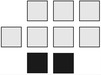
| reset all muted & soloed tracks |
NAV + ALT |
 |
Solo & Mute
When NAV is released first, the (solo / mute) mode will be kept active (toggled).
Pressing the same key combination but releasing NAV first will reset the (solo / mute) mode of the currently selected
track.
To reset all muted and soloed tracks, press NAV + ALT.
ALT Modifier
| Function |
Key Combination |
Image |
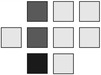
| Jump up/down to next populated row after a blank row |
ALT + (UP / DOWN) |
 |
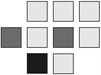
| Nudge tempo down/up |
ALT + (LEFT / RIGHT) |
 |
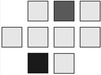
| query current row for playback |
ALT + PLAY |
 |
| reset all muted & soloed tracks |
ALT + NAV |
|
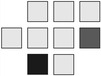
| cut the current cursor position if filled, paste otherwise |
ALT + ENTER |
 |
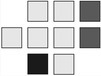
| Clone: Overwrite current highlighted Item with a copy of itself using the next unused Item available. |
ALT + (EDIT, ENTER) |
 |
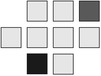
| start selection |
ALT + EDIT |
 |
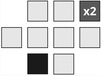
| start selection with row selected |
ALT + EDIT + EDIT |
 |
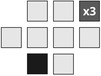
| start selection with current screen selected |
ALT + EDIT + EDIT + EDIT |
 |
Use Selection
Once a selection is started you can do a few more things:
| Description |
Key Combination |
Image |
| change selection |
ARROWS |
|
| increase selection to full row / screen |
ALT + EDIT |
|
| copy selection to clipboard |
EDIT |
|
| cut selection to clipboard |
ALT + ENTER |
|
EDIT Modifier
| Function |
Key Combination |
Image |
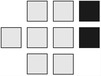
| Cuts the current Highlighted Item. |
EDIT + ENTER |
 |
| start selection |
EDIT + ALT |
|
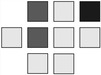
| Page up/down in Song Screen. |
EDIT + (UP / DOWN) |
 |
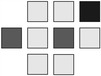
| Switch between Song and Live Mode |
EDIT + (LEFT / RIGHT) |
 |
| mute selected track |
EDIT + NAV |
|
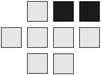
| [advance only] Sample recording, only accessible when sequencer is stopped |
EDIT + PLAY |
 |
ENTER Key Combinations
| Function |
Key Combination |
Image |
| insert if cursor position is empty |
ENTER |
|
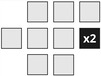
| Insert next unused chain |
ENTER, ENTER |
 |
| cut the current cursor position if filled, paste otherwise |
ENTER + ALT |
|
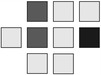
| Change chain at cursor position by 0x10 |
ENTER + (UP / DOWN) |
 |
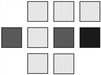
| Change chain at cursor position by 0x01 |
ENTER + (RIGHT / LEFT) |
 |
| solo selected track |
ENTER + NAV |
|
Chain View
No Modifier
| Function |
Key Combination |
Image |
| Move cursor on screen |
ARROW keys |
|
| Start/stop playback of current chain |
PLAY |
|
| enter last used phrase or start with 0 |
ENTER |
|
NAV Modifier
| Function |
Key Combination |
Image |
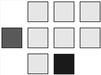
| switch to song view |
NAV + LEFT |
 |
| switch to phrase view |
NAV + RIGHT |
|
| play chain in song |
NAV + PLAY |
|
| unmute all |
NAV + ALT |
|
| toggle mute |
NAV + EDIT |
|
| switch solo mode |
NAV + ENTER |
|
ALT Modifier
| Function |
Key Combination |
Image |
| unmute all |
ALT + NAV |
|
| clone current position |
ALT + (EDIT, ENTER) |
|
| paste clipboard |
ALT + ENTER |
|
| start selection |
ALT + EDIT |
|
EDIT Modifier
| Function |
Key Combination |
Image |
| warp to (previous / next) channel |
EDIT + (LEFT / RIGHT) |
|
| warp to (previous / next) chain of current channel |
EDIT + (UP / DOWN) |
|
| cut current position into clipboard |
EDIT + ENTER |
|
| clone current position |
ALT + (EDIT, ENTER |
|
| toggle mute |
EDIT + NAV |
|
| start selection |
ALT + EDIT |
|
| start selection with row selected |
ALT + EDIT + EDIT |
|
| start selection with current screen selected |
ALT + EDIT + EDIT + EDIT |
|
| [advance only] Sample recording, only accessible when sequencer is stopped |
EDIT + PLAY |
|
Use Selection
Once a selection is started you can do a few more things:
| Description |
Key Combination |
Image |
| change selection |
ARROWS |
|
| copy selection to clipboard |
EDIT |
|
| toggle mute |
EDIT + NAV |
|
| update selection values by +/- 0x10 |
ENTER + (UP + DOWN) |
|
| update selection values by +/- 0x01 |
ENTER + (LEFT + RIGHT) |
|
| cut the current selection |
ALT + ENTER |
|
| switch solo mode |
NAV + ENTER |
|
| switch to song view |
NAV + LEFT |
|
| switch to phrase view |
NAV + RIGHT |
|
| play chain |
PLAY |
|
| play chain in song |
NAV + PLAY |
|
| unmute all |
ALT + NAV |
|
ENTER Key Combinations
| Function |
Key Combination |
Image |
| update cursor value by +/- 0x10 |
ENTER + (UP / DOWN) |
|
| update cursor value by +/- 0x01 |
ENTER + (LEFT / RIGHT) |
|
| paste clipboard |
ENTER + ALT |
|
| switch solo mode |
ENTER + NAV |
|
Phrase View
No Modifier
| Function |
Key Combination |
Image |
| Move cursor on screen |
ARROW keys |
|
| Start/stop playback of current phrase |
PLAY |
|
| enter last used value or start with 0 |
ENTER |
|
| in instrument column: insert first unused instrument number |
ENTER, ENTER |
|
| in argument column of TBL command: insert first unused table number (TODO: see issue #753) |
ENTER, ENTER |
|
| in note / instrument column: audition note |
ENTER held |
|
NAV Modifier
| Function |
Key Combination |
Image |
| switch to chain view |
NAV + LEFT |
|
| switch to instrument view |
NAV + RIGHT |
|
| switch to table view |
NAV + DOWN |
|
| switch to groove view |
NAV + UP |
|
| play phrase in song |
NAV + PLAY |
|
| unmute all |
NAV + ALT |
|
| switch mute mode |
NAV + EDIT |
|
| switch solo mode |
NAV + ENTER |
|
ALT Modifier
| Function |
Key Combination |
Image |
| unmute all |
ALT + NAV |
|
| paste clipboard |
ALT + ENTER |
|
| start selection |
ALT + EDIT |
|
| clone current instrument (cursor in note / instrument column) |
ALT + (EDIT, ENTER) |
|
| clone current table (cursor in note / instrument column) (TODO: see issue #753) |
ALT + (EDIT, ENTER) |
|
EDIT Modifier
| Function |
Key Combination |
Image |
| warp to (previous / next) track |
EDIT + (LEFT / RIGHT) |
|
| warp to (previous / next) phrase in chain |
EDIT + (UP / DOWN) |
|
| cut current position into clipboard |
EDIT + ENTER |
|
| toggle mute |
EDIT + NAV |
|
| start selection |
EDIT + ALT |
|
| start selection with row selected |
ALT + EDIT + EDIT |
|
| start selection with current screen selected |
ALT + EDIT + EDIT + EDIT |
|
| [advance only] Sample recording, only accessible when sequencer is stopped |
EDIT + PLAY |
|
Use Selection
Once a selection is started you can do a few more things:
| Description |
Key Combination |
Image |
| change selection |
ARROWS |
|
| increase selection to full row / screen |
ALT + EDIT |
|
| copy selection to clipboard |
EDIT |
|
| cut the current selection |
ALT + ENTER |
|
| update selection values by +/- 0x10 |
ENTER + (UP + DOWN) |
|
| update selection values by +/- 0x01 |
ENTER + (LEFT + RIGHT) |
|
ENTER Key Combinations
| Function |
Key Combination |
Image |
| update cursor value by +/- 0x10 |
ENTER + (UP / DOWN) |
|
| update cursor value by +/- 0x01 |
ENTER + (LEFT / RIGHT) |
|
| paste clipboard |
ENTER + ALT |
|
| switch solo mode |
ENTER + NAV |
|
Instrument View
No Modifier
| Function |
Key Combination |
Image |
| Move cursor on screen |
ARROW keys |
|
| Start/stop playback |
PLAY |
|
ENTER Key
| Function |
Key Combination |
Image |
| Import sample from samplelib (double-tap on sample field) |
ENTER, ENTER |
|
| Get next available table (on table field) |
ENTER |
|
NAV Modifier
| Function |
Key Combination |
Image |
| Switch to Phrase view |
NAV + LEFT |
|
| Switch to Table view (if instrument has table) |
NAV + DOWN |
|
| Start playback (phrase mode) |
NAV + PLAY |
|
EDIT Modifier
| Function |
Key Combination |
Image |
| Previous/Next instrument (-1/+1) |
EDIT + (LEFT / RIGHT) |
|
| Previous/Next instrument (-16/+16) |
EDIT + (DOWN / UP) |
|
| Cut/purge instrument (sample) or clear table |
EDIT + ENTER |
|
| clone current table |
ALT + (EDIT, ENTER) |
|
| [advance only] Sample recording, only accessible when sequencer is stopped |
EDIT + PLAY |
|
Import View
No Modifier
| Function |
Key Combination |
Image |
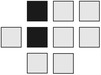
| Move up/down in file list |
UP / DOWN |
 |
| Toggle selected button |
LEFT / RIGHT |
 |
| Preview selected sample (hold) |
PLAY |
|
| Navigate into directory |
ENTER |
|
ENTER Key
In File Browser Mode:
| Function |
Key Combination |
Image |
| Import sample |
ENTER (with Import button selected) |
|
| Edit sample |
ENTER (with Edit button selected) |
|
In Project Pool Mode:
| Function |
Key Combination |
Image |
| Edit sample |
ENTER (with Edit button selected) |
|
| [advance only] Remove sample from project |
ENTER (with Remove button selected) |
|
NAV Modifier
| Function |
Key Combination |
Image |
| Return to source view (Phrase or Instrument) |
NAV + LEFT |
|
| Toggle between sample library and project pool |
NAV + EDIT |
|
EDIT Modifier
| Function |
Key Combination |
Image |
| Go to parent directory |
EDIT + LEFT |
|
| Increase / Decrease preview volume |
EDIT + (UP / DOWN) |
 |
ALT Modifier
| Function |
Key Combination |
Image |
| Import sample |
ALT + PLAY |
|
Sample Editor View
No Modifier
| Function |
Key Combination |
Image |
| Move cursor on screen |
ARROW keys |
|
| Preview sample (hold) |
PLAY |
|
ENTER Key
| Function |
Key Combination |
Image |
| update cursor value |
ENTER + (UP / DOWN) (with start, end or name field selected) |
|
| update cursor position in field |
ENTER + (LEFT / RIGHT) |
|
| Save sample |
ENTER (with Save button selected) |
|
EDIT Key
| Function |
Key Combination |
Image |
| delete character at cursor position |
EDIT (with name field selected) |
|
NAV Modifier
| Function |
Key Combination |
Image |
| Return to sample browser |
NAV + LEFT |
|
Table View
No Modifier
| Function |
Key Combination |
Image |
| Move cursor on screen |
ARROW keys |
|
| Start/stop playback of current phrase |
PLAY |
|
| Paste last used command (in command column) |
ENTER |
|
NAV Modifier
| Function |
Key Combination |
Image |
| Switch to Phrase View (from Table1) or Instrument View (from Table2) |
NAV + UP |
|
| Switch to Table View (from Table2) |
NAV + LEFT |
|
| Switch to Table2 View (from Table1) |
NAV + RIGHT |
|
| Play phrase in song context |
NAV + PLAY |
|
ALT Modifier
| Function |
Key Combination |
Image |
| Paste clipboard |
ALT + ENTER |
|
EDIT Modifier
| Function |
Key Combination |
Image |
| Warp to previous/next table (-1/+1) |
EDIT + (LEFT / RIGHT) |
|
| Warp to previous/next table (-16/+16) |
EDIT + (DOWN / UP) |
|
| Cut current position into clipboard |
EDIT + ENTER |
|
| Start selection mode |
EDIT + ALT |
|
| [advance only] Switch to Record View (when sequencer stopped) |
EDIT + PLAY |
|
Use Selection
Once a selection is started you can do a few more things:
| Function |
Key Combination |
Image |
| change selection |
ARROW keys |
|
| increase selection to full row / screen |
ALT + EDIT |
|
| copy selection to clipboard |
EDIT |
|
| cut the current selection |
ALT + ENTER |
|
ENTER Modifier
| Function |
Key Combination |
Image |
| update cursor value by +/- 0x10 |
ENTER + (UP / DOWN) |
|
| update cursor value by +/- 0x01 |
ENTER + (LEFT / RIGHT) |
|
| Paste clipboard |
ENTER + ALT |
|