Device Management
The device screen allows you to manage settings for the Advance device hardware itself.
Note: the Advance saves its device settings to the sdcard, so if you replace the sdcard in your Advance, the device configuration will reset to factory defaults.

MIDI
The MIDI section contains settings for MIDI input and output.
-
Output Device: Selects the MIDI output interface. Available options are:
- Off
- TRS
- USB
- TRS+USB
-
Ctrl Surface: Enable or disable automatic MIDI control surface input handling. Available options are:
- Off
- Auto
-
Transport/Sync: Controls whether the Advance sends MIDI clock sync messages. Available options are:
- Off
- Send
-
Input Device: Selects the MIDI input interface. Available options are:
- Off
- TRS
- USB
- TRS+USB
Remote UI
This setting enables or disables sending commands to a computer attached via USB to the Advance running a "remote UI" application that can mirror the display from the Advance.
The official picoTracker remote UI web application is available here.
NOTE: The remote ui webapp ONLY works in Chromium based desktop browsers.
Instrument Audition
This setting enables or disables automatic instrument audition when you edit sound-changing parameters in the Instrument and Voice screens. It is On by default.
See Auditioning Instruments for the complete behavior.
Import Resampler
This setting allows the selection of the sample rate converter used during sample import. Available options are:
- None
- Linear
- Sinc
- Sinc HQ
Check the sample instrument section for more details.
Display Brightness
The display brightness setting allows you to adjust the backlight level of the Advance's LCD display. The brightness value is shown in hexadecimal and can be set from 0F (minimum) to FF (maximum). The default value is FF (maximum brightness).
Adjusting the brightness can help with battery life (lower brightness uses less power) and visibility in different lighting conditions.
Output Volume
The output volume setting controls the master audio output level. The value ranges from 0 (muted) to 100 (maximum). The default value is 40.
Battery Health
The device screen displays the current battery state of charge (State of Health) as a percentage on the right-hand side of the screen. If the battery reading is not available, NA will be shown instead.
Theme Settings
The Theme Settings screen allows you to customize the appearance of the Advance interface, including fonts and colors. To access the Theme Settings screen, select the "Theme settings" option on the Device screen.
See the Theme Settings chapter for more details.
Updating Firmware
First copy the new firmware file you want to install to the top level directory of your sdcard using your computer and then insert it back into your Advance.
Then go to the Device Screen and select the Update firmware menu item. You will be prompted to confirm that you want to reboot and lose any unsaved changes. This will reboot the Advance into its "bootloader" mode.
If the sequencer is currently playing, the update will be blocked with a "Not while playing" message — stop playback first.
Once the Advance has booted into the bootloader mode, you will see the bootloader user interface on the screen:
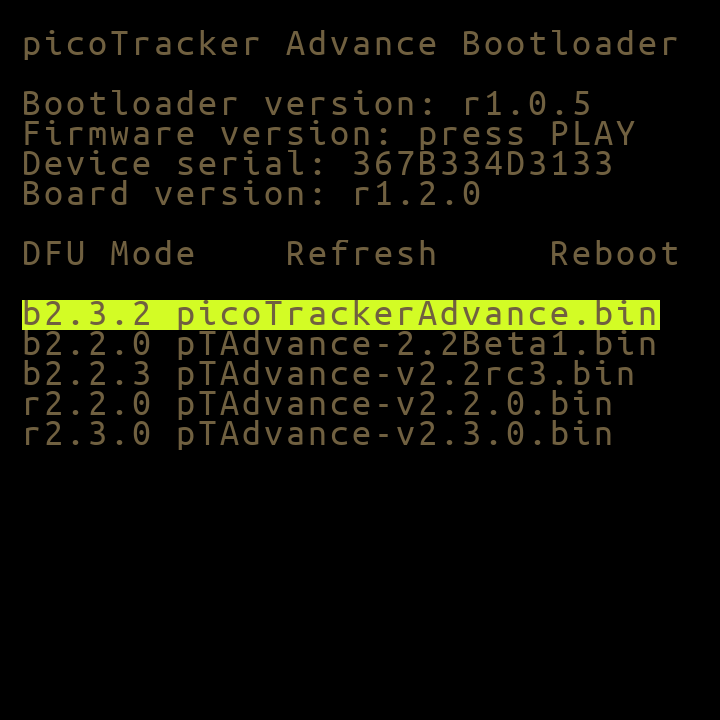
You can now use the arrow buttons to select the .bin firmware file to install from the sdcard and press ENTER to install the firmware.
Once installation of the new firmware is completed, you can use the arrow keys to move the selection to the Reboot on screen option to reboot into normal mode and be running the newly installed firmware.
NOTE: If for some reason you cannot boot into the normal mode on your Advance, you can also boot the Advance into its bootloader mode by holding down the boot button, accessible through a small hole below the sdcard slot as you keep pressing the power button for approximately 8 seconds to reboot into the bootloader mode.