Sample Editor
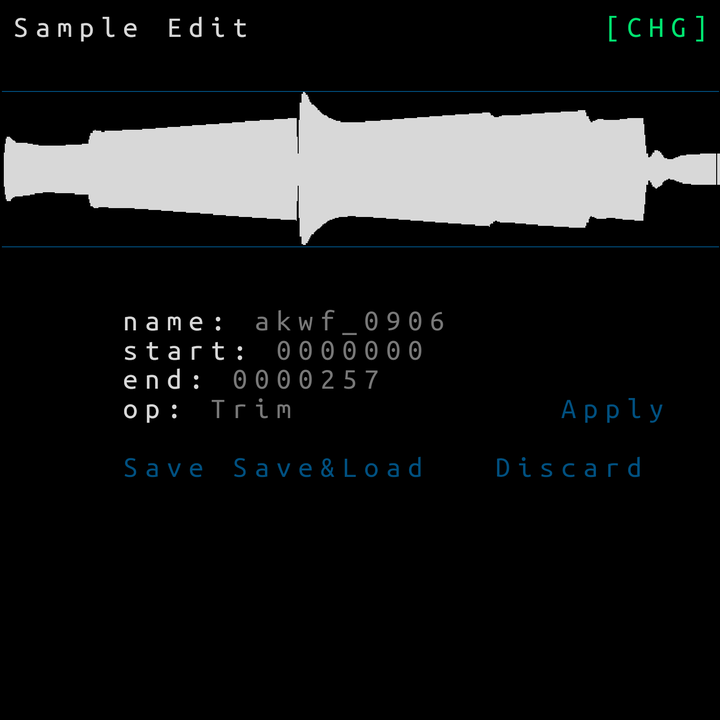
Introduction
The Sample Editor lets you trim and rename samples already in your project.
NOTE: The sample editor operations are DESTRUCTIVE when applied to a file so you need to rename the file in the sample editor and do Save first to create a new file to edit BEFORE applying an edit operation to the file.
Accessing the Sample Editor
You can enter the Sample Editor from the Sample Browser:
- Select a sample in the Project Pool or Sample Library.
- Choose the
Editonscreen field and press ENTER.
Screen Layout
The Sample Editor focuses on a few editable fields:
- Name: The filename used for this sample.
- Start: The playback start position.
- End: The playback end position.
- Save: Commits the current edits.
Use the arrow keys to move the cursor between these fields.
Editing a Sample
- Move around: Use the ARROW keys to select fields.
- Preview: Hold PLAY to audition the current start/end range.
- Adjust values: Hold ENTER and press UP/DOWN to change the selected fields value.
- Edit name: While the name field is selected, use ENTER+LEFT/RIGHT to move the cursor, and EDIT to delete the character at the cursor.
Saving Changes
Select Apply to DESTRUCTIVELY apply the currently selected operation and its parameters (start and end points) to the currently filename.
Select Save and press ENTER to write the edits to disk. Use NAV+LEFT to return to the Sample Browser without saving.
Save & Load will save the file and load it into the Project Pool.
Discard will also leave the Sample Editor screen to return to the Sample Browser without saving.