Getting Started
Start Up
The Advance boots into the Song screen of your most recently opened project.

|
Note: If for some reason you don't want to load the last used project when turning on your Advance, press and keep holding down EDIT while restarting to instead launch a new, untitled project instead. |
Navigation
The picoTracker user interface is made up of a series of screens, which are layed out in a "map" which is represented at the bottom right of each screen with a single letter representing each screen, along with highlighting with a different color which screen is currently being displayed.
Screen Map
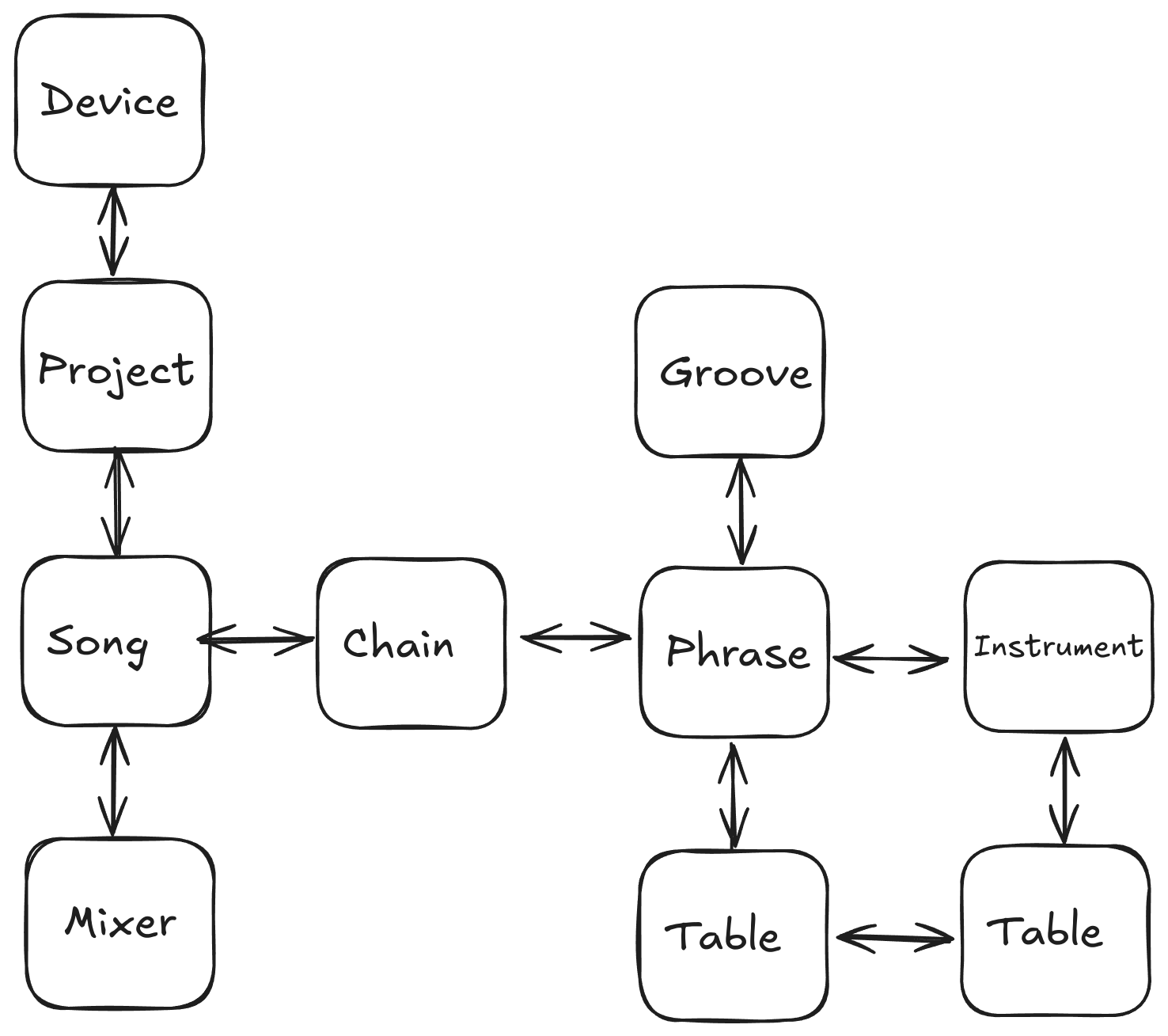
The diagram above shows the relationship of the screens to each other as represented by the onscreen mini screenmap, with the blue lines showing the possible navigation between the screens.
The picoTrackers keypad layout resembles a typical console game controller.
You can navigate (aka move) between screens using NAV+UP/DOWN/LEFT/RIGHT
|
|
Note: To get to the chain screen, you need to have your cursor on a chain in the song. To get to the phrase screen, you need to have your cursor on a pattern in the chain screen. |
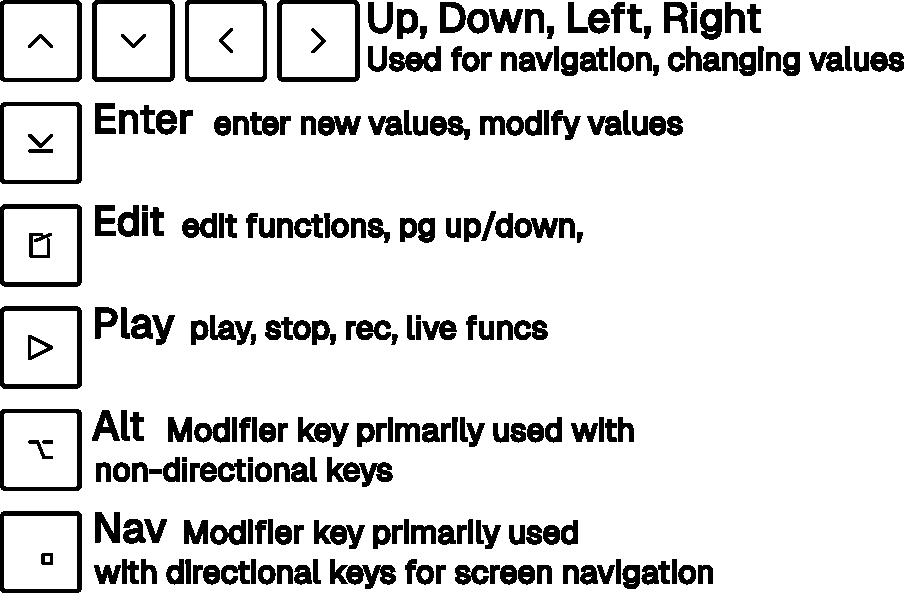
The names of the keys are shown below.
Playback Modes and Controls
When you are on the Song screen, there are two modes for playback, Song Mode and Live Mode. The controls in each mode differ.
You can switch between the modes by hitting EDIT+LEFT/RIGHT in the Song screen.
If you need to stop sound immediately, hold PLAY for about one second. This performs a panic stop, cutting currently sounding audio instead of waiting for the normal playback stop behavior.
After a normal stop, the top bar shows >T while notes or effects are still fading out.
While a sample file preview is playing in the sample browser or Sample Editor, the top bar shows >S.
For a list of all the controls, see the Controls & Moves reference.
File Browser
When selecting a sample wav file or project file you enter the file browser view.
When in the Project File Browser view, use the arrow keys UP/Down to navigate through the list of project available and press ENTER to open the currently selected (highlighted) a project. You can page through the list using EDIT+UP/DOWN.
When in the wave sample File Browser, use the arrow keys UP/DOWN to navigate through the list of available sample files and subdirectories, subdirectories are indicated with a / prefix. You can page through the list using EDIT+UP/DOWN. Press ENTER to enter a subdirectory, you can go back to the parent directory by navigating to the [up] entry and pressing ENTER or by pressing NAV+UP. Press PLAY to audition the currently selected sample wave file. To import the currently selected wave file press ALT+PLAY. At any time, you can return to the instrument screen from the sample file browser by pressing NAV+LEFT.
Shutdown and Saving
The state is backed up anytime you hold the power button for 3 seconds to power off the Advance.
The current state of your project is also backed up automatically every 60 seconds. Should the Advance ever crash or you force a reboot (by holding the power button for approximately 8 seconds) without first using the Save action field on the Project Screen you will automatically recover to the last backup point when you restart the Advance and so lose at most 60 seconds of prior changes.
If you ever wish to reset back to the last state of your project that you explicitly saved, you can open your current project via the Project screen Project Open action field and select in the browser the current project to be re-opened.