Song Screen
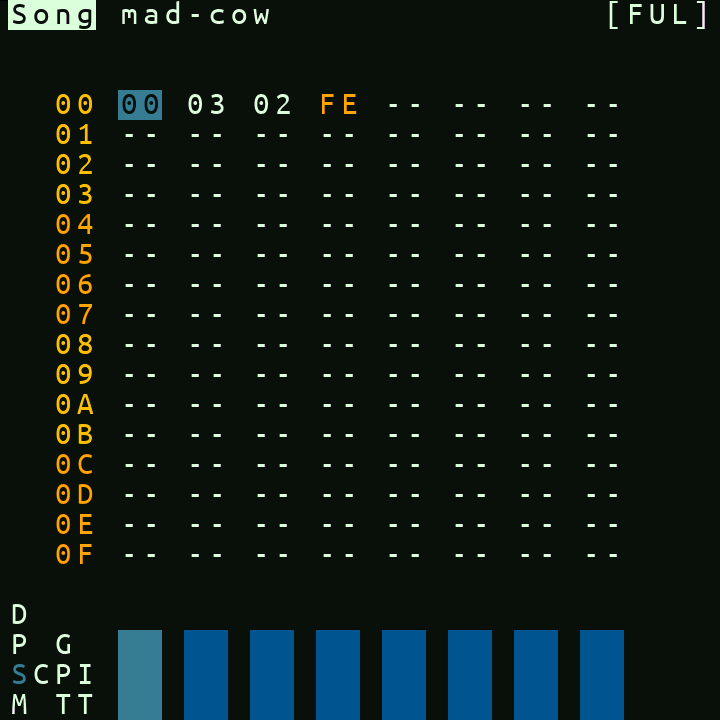
Songs are made up of chains. Each hex number on the song screen grid is a chain. You can navigate to any of those chains by putting your cursor on a chain number and hitting NAV+RIGHT.
Screen elements
-
The top of the song screen displays if you are in SONG or LIVE mode (toggle with EDIT+LEFT/RIGHT) and the name of the project that is currently open.
-
When a song channel is assigned to MIDI input,
INrow appears above the song grid and shows its incoming MIDI channel. Unassigned columns stay blank. MIDI input assignments are edited on the Project screen. -
At the bottom of the screen are the channel playback visualiser boxes. Each box correlates with the above column in the song grid. When a step is triggered in one of the columns, the note value of that trigger is displayed in the play-time visualizer.
-
On the top right of the song screen we have play-time statistics. First there is the clipping indicator which displays “----” when your volume levels are ok and “clip” when you've cleared the headroom and are chopping off the top of your samples. The bottom row of the play-time statistics is the amount of time which has passed since you pressed Play.
Controls
-
You can toggle between "SONG" or "LIVE" mode with EDIT+LEFT/RIGHT
-
You can navigate through the grid of chains using UP/DOWN/LEFT/RIGHT
-
An assigned song channel is reserved for MIDI input and its song data is shown dimmed. That data is kept in the project and becomes playable again when the assignment is cleared on the Project screen. Assigning the same MIDI channel to more than one song channel allows that MIDI channel to play multiple notes at once.
-
You can jump the cursor to the next/previous chain in a column by pressing NAV+DOWN/UP
-
See the Controls & Moves reference for a list of all the controls you can use for editing the chains grid on the song screen.
Selection Resampling
You can resample a selection directly from the Song screen.
- Start a grid selection first.
- Press ENTER+PLAY while the selection is active.
- picoTracker renders only the selected song rows and selected channels.
- Playback must be stopped before starting the resample.
- The rendered audio is written to the current project's samples folder as
resample.wavand then loaded into the project sample pool. - If the selected area contains no playable content, resampling will not start.
Solo and Mute
You can solo and mute specific channels on the song screen using the following key combos:
- NAV+EDIT: Toggles mute/unmute of cursor channel
- if NAV is released before EDIT, channel stays mutes
- if EDIT is released before NAV, channel goes back to original state
- NAV+ENTER: Solo cursor channel
- if NAV is released before ENTER, channel stays solo'ed
- if ENTER is released before NAV, all channel go back to original state
- ALT+NAV: restore full playback on all channels
- NAV+ENTER,NAV+EDIT can be used in conjunction with selections.
- if a selection is present the toggle mute/solo action is done on all channels present in the selection
Playback Modes
As mentioned above, the Song screen can be either in song or live mode. The controls in each mode differ slightly. You can switch between the modes using ENTER+LEFT/RIGHT while on the Song screen.
Tempo Nudge
You can temporarily speed up or slow down the song playback using the Tempo Nudge feature. This is useful for syncing with external gear or making fine timing adjustments during live/DJ performances.
- ALT + LEFT: Nudge tempo down (slower)
- ALT + RIGHT: Nudge tempo up (faster)
The tempo will return to its original value when you release the keys.
Song Mode
In the song mode Play starts and stops song playback from the currently highlighted row of the chain grid. If one of the rows channel is marked --, that channel will be ignored entirely for the rest of the playback session (until playback is stopped).
When a grid selection is active, PLAY starts at the first selected row and loops the selected row range, playing only the selected channels.
Hold PLAY for about one second to panic stop. This immediately stops playback and cuts currently sounding audio, including stuck notes or long effect tails. A normal short press of PLAY still starts or stops playback when you release the key.
In Song mode ALT+PLAY starts or stops normal song playback from any screen; it does not loop a Song-screen selection.
Live Mode
In Live mode Play queues from the currently highlighted channel step.
- The Queued item will be played as soon as the playing chain on the selected channel reaches its last step.
- If there is no playing chain step on the selected channel, the next song chain that reaches its last step will trigger playback.
- Queued chains are shown with a blinking
>. - Pressing Play a second time will queue the chain using "immediate" mode.
- The queued item will be played as soon as the playing phrase on its channel reaches the last step.
- Immediate mode Queued items are shown with a fast blinking
>.
ALT+PLAY will queue all channel steps on the current row.
- The queued items will be played as soon as the playing chain on their channel reaches its last step.
- Queued items are shown with a blinking
>. - Pressing Play a second time will queue the items using immediate mode.
- The queued items will be played as soon as the playing Phrase on the their xhannel reaches its last step.
- Immediate mode queued items are shown with a fast blinking
>.
NAV+Play: Queues the selected channel step to be stopped.
- The queued channel will be stopped as soon as its playing chain reaches the last step.
- Queued Items are shown with a blinking
_. - Pressing Play a second time will cause the selected channel step to be queued to stop using immediate mode.
- The queued channel will be stopped as soon as its playing phrase reaches the last step.
- Immediate mode queued items are shown with a fast blinking
_.