Instruments
Instrument Types
picoTracker supports several different types of instruments, each with its own unique capabilities and parameters. You can switch between instrument types using the Type field at the top of the instrument screen.
Switching Instrument Types
- Navigate to the instrument screen by pressing NAV+RIGHT from the phrase screen
- By default the
NONEinstrument type is selected - Press EDIT+LEFT or EDIT+RIGHT to cycle through the available instrument types:
- SAMPLE: The new, advanced sample instrument with integrated slicer and Voice screen
- FM6: A six-operator FM synthesizer with built-in and imported DX7 patches
- MIDI: For controlling external MIDI devices
- SID: A three-voice chip synthesizer based on the sound chip used in the Commodore 64
- STARLOOM: A dual macro-oscillator synthesizer
- PICOSWARM: A detuned multi-oscillator synthesizer
- ORIGINAL SAMPLE: The earlier sampler appears only in projects that already contain one. Once available in a project, you can select it again or create additional Original Sample instruments.
- If you've made changes to the current instrument, you'll be asked to confirm before switching types
- Note that you cannot change instrument types while playback is active
Importing and Exporting Instruments
Once you've created an instrument, you can save it for use in other projects:
- Make sure your instrument has a name set in the "name:" field
- Select "Export" on the instrument screen
- To import a previously saved instrument, select "Import"
Auditioning Instruments
Advance can audition audio instruments directly from the Instrument and Voice screens. MIDI instruments are excluded. While an instrument audition is active, the top of the screen shows the play icon followed by A.
Automatic Parameter Audition
When Instrument Audition is On in the Device screen, changing a sound-affecting parameter automatically retriggers the current instrument. The audition continues while ENTER is held and stops when it is released.
Automatic parameter audition never runs while the sequencer is playing, regardless of the Device setting.
Manual Audition
Press and hold ALT+PLAY in the Instrument or Voice screen to audition the current audio instrument. Release the combination to stop the note. Manual audition is always available, even when Instrument Audition is Off and while the sequencer is playing.
The SAMPLE instrument is auditioned at its configured root note; when it contains slices, the selected slice is used. Other audio instrument types are auditioned at C-3.
Manual audition does not stop the sequencer. It uses the final audio channel, however, so it may temporarily replace the note sounding on that channel.
Sample Instrument
The Sample instrument is an advanced, flexible sampler that provides deep control over your sounds. It features an integrated waveform slicer on its main screen and a dedicated Voice screen for advanced sound shaping.
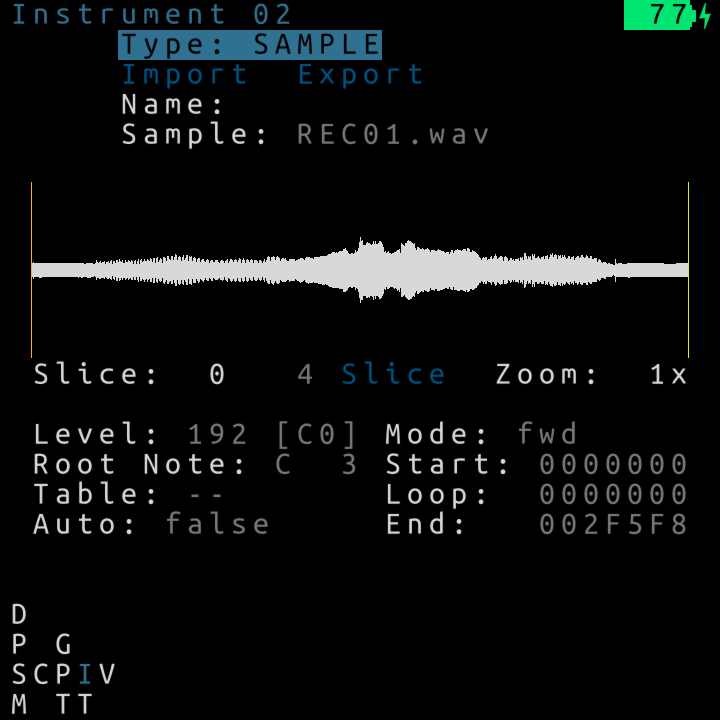
Main Parameters
- sample: Selects the .wav file to associate with this instrument. Tap ENTER,ENTER to go to the Sample Import Screen.
- Waveform Display / Slicer: Displays the sample waveform and active slices. You can directly edit and select slices here.
- slices: Shows the number of slices applied to the sample. Select
Adjustto open the Sample Slices view (up to 64 slices). - level: Overall output level of the instrument.
- root note: The base pitch of the sample.
- table: Select a table for the instrument to run.
- automation: If On, the table advances one row every time the instrument is triggered.
- mode: Selects the playback mode:
oneshot: Plays the sample from start to finish once.reverse: Plays the sample backwards from end to start.loop: Loops from loopstart to loopend.reverse loop: Loops backwards from loopend to loopstart.loop pingpong: Loops back and forth between loopstart and loopend.oscillator: Treats the loop selection as a single-cycle oscillator and tunes it automatically.looper sync: Automatically tunes the loop to play exactly 16 bars.
- start: Start point of the sample.
- loop start: Start point when looping is enabled.
- loop end: End point for playback or looping.
Voice Screen
Press NAV+RIGHT from the Sample instrument screen to access the Voice screen. This screen provides advanced parameters for shaping the sound of the Sample instrument.
-
Trigger Length: Controls the duration of the internal note trigger.
-
Amp Envelope: A full Attack, Decay, Sustain, and Release (ADSR) envelope for controlling the instrument's volume over time.
-
Filter 1 (Bandpass): A dedicated bandpass filter with Cutoff, Resonance, and Mix controls.
-
Filter 2 (Multimode): A flexible multimode filter.
- Cutoff / Resonance: Controls the filter frequency and peak.
- Type: Morphs the filter from Lowpass (00) to Bandpass (7F) to Highpass (FF).
- Mix: Blends the filtered signal with the dry signal.
-
Filter Envelope: An ADSR envelope dedicated to Filter 2's cutoff frequency, with an adjustable Amount to control the depth of the modulation.
-
Insert Effects: Two insert slots for adding effects directly to the voice.
Field Full name Values FX1 / FX2 Insert effect slot 1 / 2 none,odrv,crsh,down,slew,rectAmt Amount 00-FFPos Position pre,postAvailable effects:
- none: Bypasses the insert slot.
- odrv (overdrive): Adds overdrive distortion to the signal.
- crsh (bitcrush): Reduces the bit resolution of the audio, creating a lo-fi, granular texture.
- down (downsample): Reduces the effective sample rate, introducing aliasing and low-frequency warble.
- slew: Limits the maximum rate of change between consecutive samples, smoothing sharp transients. At low amounts the effect is subtle; at high amounts the signal ramps slowly, producing a warped, softened sound.
- rect (rectify): Applies full-wave rectification, folding the negative portions of the waveform into the positive range. This introduces even harmonics and a frequency-doubling character. The amount controls a blend between the original and rectified signal.
-
LFO: Two Low Frequency Oscillators, LFO1 and LFO2 are available for modulating almost every other voice parameter. As you select the target for each LFO the matching field will be displayed with a
1or2symbol next to the fields label.Field Full name Values Tgt Target OFF,BASE,WDTH,PAN,FX1,FX2,FCOF,FRES,FENV,FATK,FDEC,FSUS,FREL,AMP,AATK,ADEC,ASUS,ARELShp Shape sine, triangle, square, ramp, random Trg Trigger free,trigTyp Type spd,synSpd Speed 00-FFinspdmode, or4/1,2/1,1/1,1/2,1/4,1/8,1/16,1/32,1/2T,1/4T,1/8T,1/16TinsynmodeLvl Level 00-FF, clamped to the selected target's range
Original Sample Instrument
This is the earlier sampler instrument, preserved for compatibility with older projects. It is available in the instrument type list only when the loaded project already contains an Original Sample instrument.
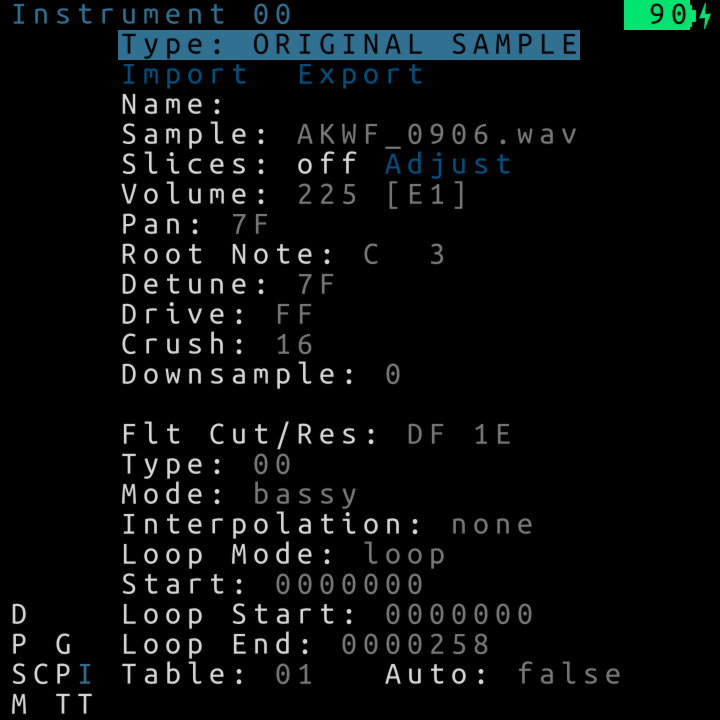
-
sample: Selects the .wav file to associate with this instrument. You can use the same sample in more than one instrument. Tap ENTER,ENTER to go to the Sample Import Screen which lets you load new .wav files into your project, with the last imported sample selected as the sample assigned to this instrument [1]
-
volume: Set the volume of the instrument
-
pan: Pans the instrument left or right (0x7F is center)
-
root note: The root note of the sample
-
detune: Detune the sample by the number of semitones
-
drive: This is a volume modification before crush, and the instruments volume is after the crush
-
crush: Decreases the bit resolution
-
downsample: Decreases the bit rate (eg. low frequency aliasing whines). Each increase in this value will downsample the original sample by a factor of 2
-
cutoff: Set the Filter cutoff frequency
-
reso: Set the Filter resonance frequency
-
type: The filter supports continuous change from low pass to high pass. Set type to
00for low pass.FFfor high pass and7Ffor band pass. All intermediate values morph in between them -
dist: Set the filter distortion. Available values are
noneandscream -
interpolation: Interpolation mode ('linear'/'none'). Selects which interpolation mode is used when in between samples.
Linearinterpolates linearly whilenonetakes the nearest neighbor. Use none when playing samples at low range to add some typical overtones. Note using linear interpolation currently adds significantly to the CPU load during playback. -
loop mode: selects the looping mode.
nonewill play sample from start to finishloopwill start at the start and loop from loopstart to end.looper syncwill automatically tune a loop so that it plays exactly 16 bars. Use the root note to play twice faster/sloweroscillatoris a special mode where the loop selection (from loopstart to end) is taken as oscillator data and automatically tuned. Note that 'root note' can be used to tune the oscillator back in a useful range
-
start: start point of the sample regardless of if loop is enabled (note value is in hex)
-
loop Start: start point of the sample when loop is enabled (note value is in hex)
-
loop End: end point of the sample (note value is in hex). You can play samples backwards by setting the end value lower than the start
-
slices: Shows number of slices applied to the sample. Select
Adjustwhich opens the Sample Slices view where you can define up to 64 slice start points for the currently selected sample. -
automation: If On, the table play arrows will advance one row every time the instrument is triggered, and execute only the commands on the new rows. If this is Off, table behavior is normal (play arrows will move at the speed of 1 row per tick)
-
table: Select a table the instrument will always run. To clone a table here: ALT+(EDIT, ENTER). Make a new table by selecting a higher number not yet in use.
Sample Slices View
The Sample Slices view provides a visual editor for slice start points.
With the waveform display selected, you can use LEFT and RIGHT to select a slice point. The slice field shows the number of the currently selected slice. Press PLAY to audition only the currently selected slice.
Slices are ordered in strict order and they cannot be reordered. Moving a slice backwards will limit it's movement to the position of the previous slice. Moving a slice forward towards another slice will "shove" the next slice(s) to the new position of the current slice.
Slices are stored per instrument and always reference the currently assigned sample. Changing the instrument's sample when slices are present prompts for confirmation, because accepting the change clears all slice start points.
Quick edit: Focusing the cursor on the sample graph allows to quickly edit the slices
- EDIT + UP/DOWN: Zoom in/out centered on current selected slice (works on any selected field)
- EDIT + LEFT/RIGHT: Select previous/next slice
- ENTER + UP/DOWN: Move current slice back/forward 1/16th of the screen
- ENTER + LEFT/RIGHT: Move current slice back/forward 1/64th of the screen (finer adjustment can be done on the position field)
Auto slicing: Select the number of slices desired and press the slice button to create evenly distributed slices. Set the number to 1 to quickly delete all slices.
Sample Import Screen
You can enter the sample import file browser by hitting ENTER ENTER (press the ENTER key twice in quick succession) when you are in the sample field on either the Sample or Original Sample instrument screen. This double-press behavior provides a quick way to access the sample import file browser from the sample field in the instrument screen.
When in the Project Screen, you can access the sample import file browser with a single press of the ENTER key on the "Import Sample" field.
Samples that you may want to import into a project can be located in any folder but it's recommended to keep them in the folder named /samples at the top-level of the sdcard as that is the default location for the sample import file browser to display when you enter it.
When you're done in the Import Screen, you can press NAV+LEFT to return to the screen you came from (either the Instrument Screen or the Project Screen).
Note: sub-directories will be sorted before files, but otherwise the files will be listed in an unspecified order (ie. not necessarily alphabetical order).
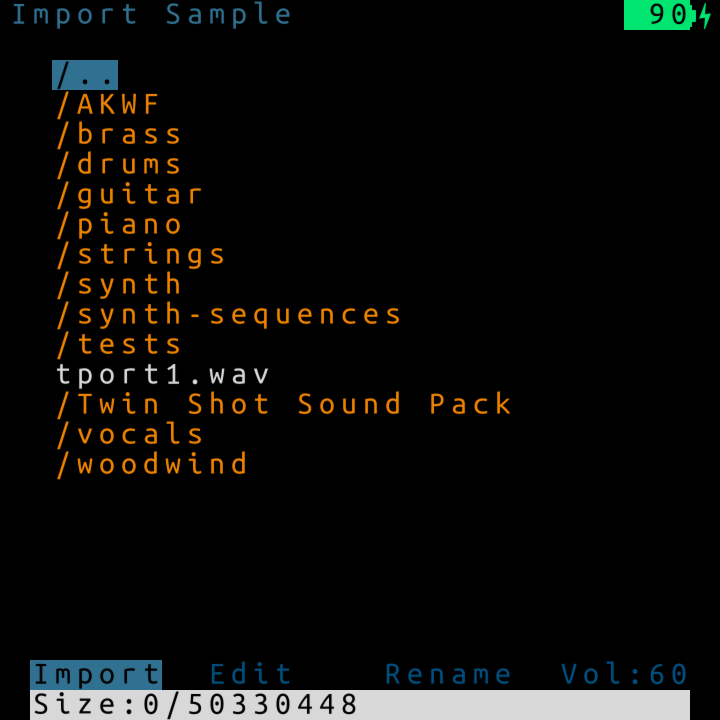
When entering the import file browser, the current folder is the library root folder /samples. All samples (.wav files) in that folder are listed.
Use the UP and DOWN arrow keys to navigate through the list of available sample files and subdirectories. Subdirectories are indicated with a / prefix. Press EDIT to enter a subdirectory. You can go back to the parent directory by navigating to the [up] entry and pressing ENTER, or by pressing NAV+UP. Hold down PLAY to audition the currently selected sample wave file. To import the currently selected wave file press ALT+PLAY.
Single Cycle Waveforms: Single cycle waveforms are specially marked with a ~ prefix in the file listing. These are WAV files with specific sizes (300 or 1344 bytes) that can be used as oscillators. When imported, they'll automatically be set to oscillator mode in the instrument settings.
A great collection of single cycle waveforms can be found in the Adventure Kid Sample Library.
The status bar at the bottom of the screen shows additional information about the selected file and other information such as:
- Current preview volume (vol:XX%)
- File size in bytes
- Available project sample storage size in bytes
Basic Controls
- Press EDIT to enter a subdirectory
- Navigate to the
[up]entry and press ENTER to go back to the parent directory - Press NAV+UP to go back to the parent directory
- Hold down PLAY to audition the currently selected sample wave file
- Press ALT+PLAY to import the currently selected wave file
- Use EDIT+UP/DOWN to adjust the preview volume
Importing Multiple Samples
You can import multiple samples in a single session without leaving the Import View. This powerful workflow allows you to quickly build up your project's sample library:
- Navigate to a sample file you want to import
- Press ENTER to import it
- Navigate to another sample file
- Press ENTER to import it
- Repeat as needed for all samples you want to import
Each sample will be added to your project's sample pool. The last imported sample will automatically be assigned to the current instrument. Previously imported samples remain available in your project and can be assigned to other instruments later.
When you're finished importing samples, return to the instrument screen by pressing NAV+LEFT.
|
Note: You can also Edit and Rename your sample files as you browse them from the import screen. |
Auditioning Volume Control
The Import View includes a convenient way to adjust the volume when previewing samples:
- EDIT + UP: Increase preview volume by 5%
- EDIT + DOWN: Decrease preview volume by 5%
The current preview volume is always displayed in the status bar at the bottom of the screen as "vol:XX%" alongside the file size information.
The preview volume uses a non-linear (quadratic) scale that provides more precise control at lower volumes, making it easier to fine-tune quiet previews. This setting is saved with your project and will be restored when you reload it.
Note: While there is a limit of 32 for the number of sub-directory levels, there is a maximum of 256 files per directory. Also please note that while FAT formatted sdcards can support upto 256 characters per filename, picoTracker only supports upto 128 character file names and only with ASCII characters. There is also a limit of 256 charactors per full file path for any file.
Supported sample file formats
Sample files must be:
- Uncompressed PCM (Wave/*.wav)
- Unsigned 8 bit; signed 16, 24 or 32 bit; float 32 or 64 bit
- Any samplerate from 8kHz to 192kHz
- Mono or stereo
Bit rate and sample rate are converted on import and saved into the project in the native picoTracker format (16bit/44100Hz/Mono or Stereo)
Sample rate converter selection: "Import resampler" option in device screen allows to choose the sample rate converter used: None: No sample rate converter is used and only files <=44100Hz can be used, sample rate conversion happens in realtime during playback and uses a linear interpolator Linear: Linear sample rate conversion is used, fast but not band-limited so it may result in aliasing and high frequency loss. Quality is similar to the previous option but higher than 44100Hz files can be imported Sinc: Fastest band-limited sinc interpolation. Higher quality interpolation but still relatively fast. (97dB SNR, 80% bandwidth) Sinc Best: Best band-limited sinc interpolation supported. Quality is comparable to what can be done on a PC at the expense of much slower conversion speed (121db SNR, 90% bandwidth)
Conversion happens on import into the project before loading into the sample pool. Any subsequent project load will not need conversion.
Conversion speed: Higher bit rate, higher sample rate and better converters all add up to higher conversion times
SID Instrument
The SID instrument is a three-voice subtractive synthesizer based on an emulation of the sound chip used in the Commodore 64. It combines oscillators, individual ADSR envelopes and a shared resonant filter, with oscillator sync and ring modulation for more complex sounds. All three voices play from each tracker note, and can be offset to build chords, octaves or layered sounds within a single instrument.
Chip Model
- Chip: Selects which version of the original SID chip is emulated.
6581models the earlier chip, with a rougher and more nonlinear filter response.8580models the later chip, with a cleaner and brighter response. The choice affects the character of the waveforms, envelopes and filter.
Voice Parameters
The V1, V2 and V3 columns contain independent settings for each of the three voices:
- Wave: Selects triangle, saw, pulse, noise, or one of the available combined waveforms.
- Tune: Tunes the voice relative to the tracker note by up to four octaves in either direction (
-48.00to48.00semitones). The compact12.34form means 12 semitones and 34 cents up;-0.01means one cent down. Hold ENTER and use UP/DOWN to move by a semitone, or LEFT/RIGHT to move by a cent. Crossing 99 cents automatically carries into the semitone value. Use different values for each voice to create chords or detuned layers. A voice is disabled when its tuned pitch falls outside the supported note range. - Pulse: Sets the pulse width from
000toFFF. This changes the tone of pulse and combined-pulse waveforms. - Sync: Hard-syncs the oscillator to the preceding SID voice, producing sharper and more harmonically complex sounds.
- Ring: Applies ring modulation from the preceding SID voice to triangle-based waveforms.
- ADSR: Controls the voice's Attack, Decay, Sustain and Release using four hexadecimal digits. Attack, Decay and Release range from
0(fastest) toF(slowest), while Sustain ranges from0(silent) toF(full level). - Filt: Routes the voice through the SID filter. Voices with this set to
Offgo directly to the SID output.
The modulation source wraps around between the voices: V1 uses V3, V2 uses V1, and V3 uses V2.
One cent is one hundredth of an equal-tempered semitone, so 1.00 is one semitone and 12.00 is one octave. The StarLoom instrument's Tune fields use the same display and controls for its two oscillators.
Filter Parameters
The three voices share one SID filter:
- Cutoff: Sets the filter cutoff from
000to7FF. - Resonance: Sets the filter resonance from
0toF. - Mode: Selects low-pass (
LP), band-pass (BP), high-pass (HP) or notch filtering. - Volume: Sets the SID instrument's output volume from
0toF.
SID and Voice Envelopes
Press NAV+RIGHT from the SID instrument screen to open the standard Voice screen. After the SID has generated and mixed its three voices, its output continues through this Voice processing. This means the three SID ADSRs shape their individual oscillators, while the Voice screen's Amp envelope shapes the complete SID instrument.
When a note is released, the SID Release stages and the Voice Amp Release stage start together. Their effects are layered: a long SID release can only be heard while the Voice Amp envelope remains open. If the Voice Amp release reaches silence first, it cuts off the rest of the SID release.
For new SID instruments, Rel in the Amp section of the Voice screen defaults to FF. This is an infinite Voice release, leaving the Voice Amp envelope open while the SID's own Release settings fade out the three oscillators. Lower this value when you also want the Voice Amp envelope to shorten or shape the release.
FM6 Instrument
FM6 is a six-operator FM synthesizer. Each FM6 instrument plays exactly one patch: either one of the built-in presets, or a patch imported from a DX7 SysEx bank file. Selecting a patch either way sets the instrument's Name: field to the patch's name (you can rename the instrument afterwards).
Press ENTER on Presets to open the preset browser. Hold PLAY on a preset to preview it, and press ENTER to apply it to the instrument; applying a preset replaces any imported patch.
The first entry in the preset browser, [SDCard], opens the DX7 patch file browser at the SD card root. The browser shows directories and .syx files. Selecting a .syx file opens it like a folder, listing the 32 patches inside by their DX7 voice names. Hold PLAY on a patch to preview it, and press ENTER to import it into the instrument. Select .. to go back to the file listing, and again from the SD card root to return to the preset list.
Only standard Yamaha DX7 32-voice bulk SysEx files are supported. Raw bank payloads, single-voice dumps, malformed files, and files with an invalid Yamaha checksum are not supported.
An imported patch becomes part of the instrument, so it is saved with the project (and with the instrument when exported to a .pti file); the original .syx file is not needed after import. Different FM6 instruments can import different patches, from the same or different bank files, completely independently.
Move the cursor through the algorithm diagram to select an operator and edit its parameters. When an operator's oscillator Mode is fixed, its nominal frequency is shown beside the Oscillator heading with the same changing decimal precision as the original DX7, for example 1.000Hz, 97.72Hz, or 977.2Hz. The readout combines the Crs and Fine settings; Det, the pitch envelope, and LFO modulation are not included.
FM6 and Voice Envelopes
Like the SID instrument, an FM6 patch shapes its own release: the six DX7 operator envelopes keep sounding after a note is released. For new FM6 instruments, Rel in the Amp section of the Voice screen therefore defaults to FF (an infinite Voice release), leaving the Voice Amp envelope open while the patch's own envelopes fade out. Lower this value when you also want the Voice Amp envelope to shorten or shape the release.
Notes played without a retrigger change the pitch of the sounding FM6 voice legato-style, without restarting the operator envelopes.
StarLoom Instrument
StarLoom is a dual-oscillator synthesizer built for exploring a wide range of digital sounds. Each oscillator can use a different synthesis shape, from familiar waveforms to more complex tonal, percussive and noise-based sounds. The two oscillators can be layered, tuned apart or combined in ways that create new harmonics.
The two columns in the Voices section control the oscillators independently. A useful starting point is to choose a Shape for each oscillator, adjust its Timbre and Color, then use Mix and Interact to bring the two sounds together.
Main Parameters
- Mix: Balances the two oscillators. At
00, both play at full level. Moving towards-7Ffades out oscillator 2, while moving towards+7Ffades out oscillator 1. - Interact: Selects how the oscillators are combined:
MIXlayers the two sounds normally.RINGuses each oscillator to reshape the other, producing new overtones that often sound metallic, bell-like or rough. Both oscillators are needed, so moving Mix fully to either side silences this mode.DIFFkeeps the difference between the two sounds. This can produce thinner, hollow or animated tones, especially when the oscillators use similar shapes or pitches.
- Signature: Adds a device-specific tone-shaping curve to both oscillators. Each Advance has its own curve, so enabling it gives a patch a character that may sound slightly different on another unit. Select
OFFto leave the curve out,1through3to add increasing amounts, orFULLfor the strongest effect.
Oscillator Parameters
- Shape: Selects how the oscillator creates its sound. The available shapes cover a broad range of tonal and noise-based synthesis methods; they are intended to be explored by ear rather than treated as variations of one basic waveform.
- Timbre: Adjusts a main characteristic of the selected shape. Its exact effect depends on the shape and may change the waveform, harmonic content or texture.
- Color: Adjusts a second characteristic of the selected shape. Like Timbre, its effect depends on the current shape.
- Tune: Tunes each oscillator relative to the tracker note by up to four octaves in either direction. Use matching values for a unified sound, small differences for detuning, or larger intervals to create octaves and chords.
Table and Voice Processing
- Table: Selects a table for the instrument to run.
- Auto: When
On, the table advances one row each time the instrument is triggered. WhenOff, it follows normal table playback.
Press NAV+RIGHT from the StarLoom instrument screen to open the standard Voice screen. This adds amplitude and filter envelopes, filters, insert effects and LFO modulation after StarLoom has combined its oscillators.
MIDI
Midi Instrument Screen

A MIDI instrument has the following settings:
- Channel - This can be set
01-16(in decimal not hex!) which is midi channel 1-16 respectively - Volume - The MIDI channel volume sent when playback starts and used as
the starting value for
VOL:FFsends 127 and00sends 0. - Program - MIDI program change value to send (0x00-0x7F). Program changes for each MIDI instrument are sent only once at sequencer start. Setting this to
--will disable sending program change messages entirely. - Length - Sets note gate length in number of ticks
- Automation - When on, the table play arrows will advance one row every time the instrument is triggered, and execute only the commands on the new rows. If this is
Off, table behavior is normal (play arrows will move at the speed of 1 row per tick) - Table- As above, select a table the instrument will always run. Clone a table here: ALT+EDIT,ENTER. Make a new table by selecting a higher number not yet in use.
Exporting an Instrument
- Make sure your instrument has a name set in the "name:" field
- Each instrument must have a unique name before it can be exported
- The default instrument type name (e.g., "Sample", "Original Sample", "MIDI", etc.) is not considered a valid name
- Navigate to the instrument you want to export
- Select "Export" from the instrument menu
- Press OK to continue after the export is complete message is shown
Exported instruments are stored in /instruments/ on your SD card.
NOTE: In the future the sample for the instrument will be stored in the same directory as the instrument file but for now is not exported.
Importing an Instrument
- Navigate to the instrument you want to import
- Select "Import" from the instrument menu
- A file browser will appear showing all available
.ptifiles in the/instrumentsdirectory - Select a
.ptifile to import, use the key combo ALT+PLAY to import it - The imported instrument will replace the currently selected instrument
- Press OK to continue after the import is complete message is shown
Tips for Instrument Management
- You can organise your instrument files into subfolders inside the
/instrumentsdirectory but exported files will always be saved in the root/instrumentsdirectory - Use descriptive names in the instrument's name field to easily identify them when importing later
- The instrument name is used for the export filename, so ensure it's set before exporting
- Back up your
/instrumentsdirectory when backing up your picoTracker data on your sdcard
Limitations of instrument performance
The picoTrackers CPU limits the number of simultaneous instruments that can be played at once. The specific limit depends on the instrument type and the settings of each instrument. In general the limit is:
- 4-5 Sample instruments or
- 8 MIDI instruments
Because they are very light weight when it comes to CPU usage, 8 MIDI instruments can be sequenced at once, the limit then coming from the limit of 8 channels (aka tracks) available for sequencing on the picoTracker.
Even given the above limits, it is still possible to mix and match instruments of different types roughly within the above limits. For example 2 Sample instruments and 4 MIDI should in theory be possible. Note this only applies to simultaneously sounding (playing) instruments and if care is taken to limit the number of simultaneously sounding instruments, a larger number of instruments can be defined within a project.
Exporting and Importing Instruments
picoTracker allows you to save and reuse your instrument settings across different projects through the instrument export and import functionality. This feature is particularly useful for building a library of your favorite instruments or using instruments created by other picoTracker users.